How to Manage Casino Data for All Your Spinoko Websites from One Place with tablrr
Bonuses, ratings, payment methods and terms change constantly. Here's how to push your Spinoko casinos to tablrr in one click and keep every site in sync.
A casino changes its welcome bonus on a Tuesday. By Friday, one of your sites still shows the old offer, another has the new one but the wrong wagering terms, and a third is missing the bonus code entirely. Nothing is broken, you just haven’t gotten to every site yet.
If you run casino affiliate websites, you know this. Bonuses, ratings, payment methods, licenses, restricted countries and T&Cs change all the time, and every page that shows them can go stale. With one site it’s annoying. With several, it’s a part-time job.
I built Spinoko for casino affiliates, and I built tablrr to be the one place where operator data lives: you keep your casinos in one dashboard, with their bonuses, terms, logos, ratings and links, and your websites read from it. Here’s how to connect the two, so you edit a casino once and your Spinoko sites follow.
The integration works in two directions:
- Push: one click sends your existing Spinoko casinos to tablrr as operators.
- Pull: tablrr data syncs back into your casino pages every hour.
What It Solves
- Stale bonuses. Change the offer once in tablrr and every mapped casino page picks it up on the next sync.
- Copy-paste across sites. No more opening several WordPress dashboards to edit the same casino.
- Inconsistent details. Ratings, payout speed, minimum deposit, licenses and blacklist status come from one record, so your sites don’t disagree with each other.
- Re-entering data. Casinos you’ve already built are pushed from WordPress, you don’t type them again.
- Incomplete bonus info. Bonus text, code, short and full terms and terms link travel together as one bonus entry.
What Do You Need?
- Spinoko 3.0.0 or later
- A tablrr account
- The tablrr WordPress plugin, installed on your site
Most of the casino data (bonuses, payout speed, licenses and so on) travels as tablrr custom fields, which need the Hobby plan or above.
Step 1 - Connect Your Site
In your tablrr account, open Settings → Sites and add your website’s domain. You’ll get a verification code. Then, in WordPress, open the tablrr menu, enter the code under Domain Verification and click Verify Domain.
That verifies your domain, creates the API token and saves it in your settings. You don’t need to do anything else.
Step 2 - Publish Your Casinos to tablrr
Open the tablrr menu in your WordPress admin. Because the plugin detects Spinoko, you’ll see a Publish Casinos to tablrr section on its settings page. Click the button.
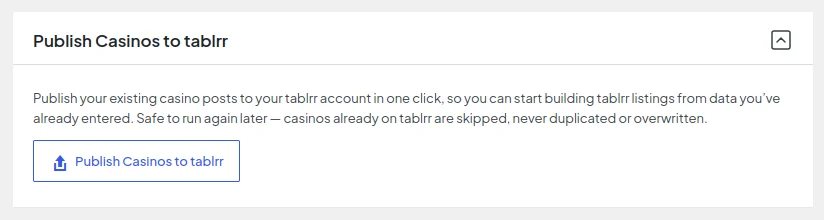
Your published casinos are sent to tablrr as operators in the background, in batches of 20, so large sites are fine. Casinos already on tablrr are skipped, never duplicated or overwritten, so you can run it again later when you add more.
Here’s what comes across for each casino:
- Name, tagline, logo, rating and affiliate link
- Pros and cons
- Every bonus, with type, text, code, short and full terms, terms link and affiliate URL
- Geo-specific affiliate links
- Licenses, established year, payout speed, minimum deposit and withdrawal, customer support and KYC speed
- Blacklist status and reason
- Payment methods, currencies, game providers, games, categories and tags
- Restricted countries
You don’t create any custom fields in tablrr first. The plugin sends the field definitions along with your casinos, and tablrr creates them, already organized into named groups such as “Spinoko: Bonuses” and “Spinoko: Casino Facts”. And since the push also links each casino to its operator, there’s nothing to match by hand.
Step 3 - Enable Operator Sync
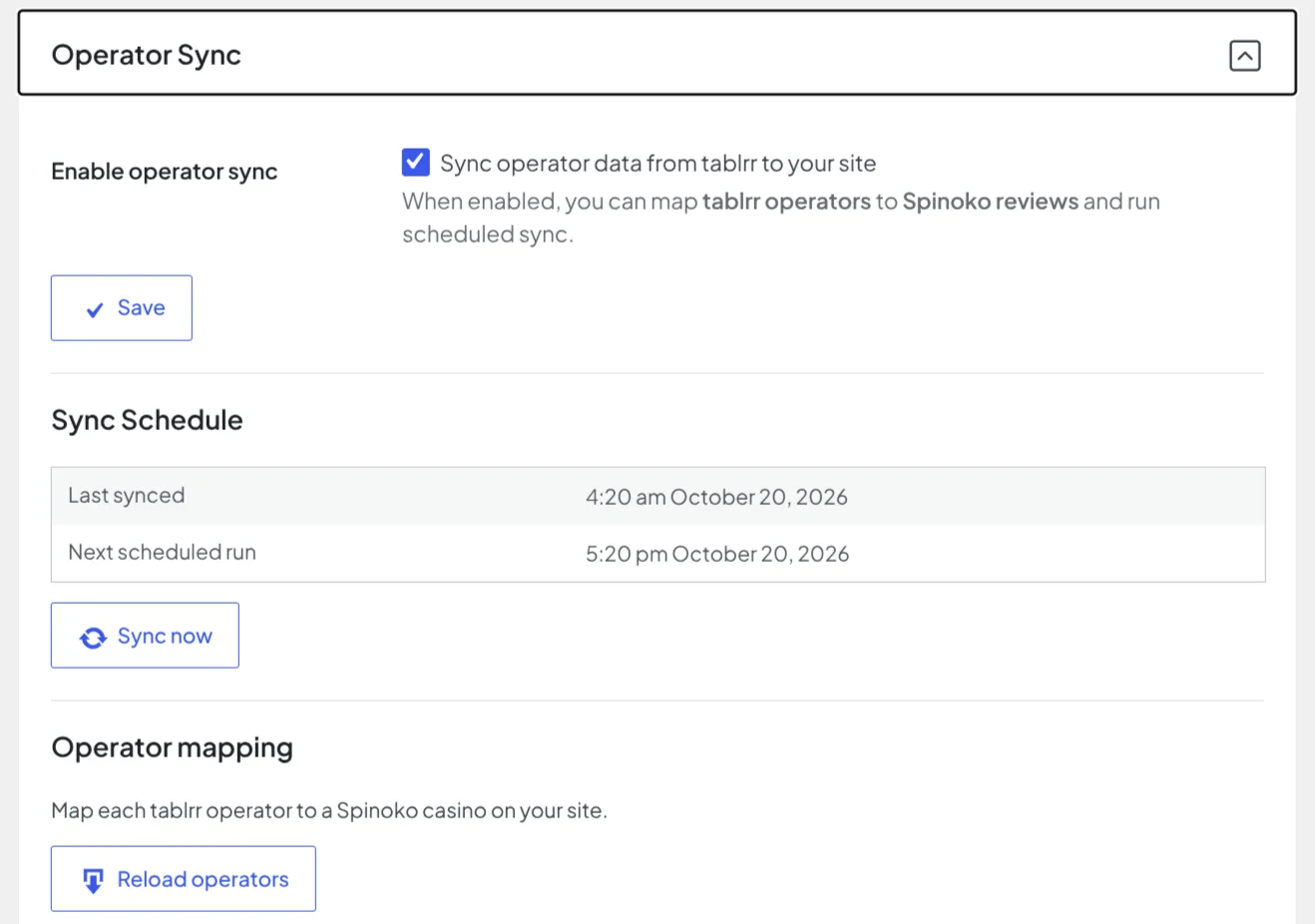
On the same tablrr settings page, open Operator Sync, tick Enable operator sync and save.
From now on, the plugin checks tablrr every hour and applies changes to your casino pages. The settings show when it last ran and when it runs next. If you’ve just changed a bonus ahead of a big event, press Sync now and you don’t have to wait.
That’s the whole setup: connect, publish, enable sync.
Edit in tablrr and Check Your Site
Change a bonus, a rating or a payment method on the operator in tablrr, hit Sync now and open the casino page on your site. The change is there, in the same Spinoko layouts you already use.
One thing to know: once a casino is linked, tablrr is the source of truth for the fields it syncs. A sync overwrites them on your site, so make your edits in tablrr. Sync also only updates existing casino posts, it never creates new ones.
Most of the casino data on the page syncs: rating, bonuses, casino facts, geo links, payment methods, games and the rest. The full field list is in the Spinoko tablrr docs.
Adding a Second (or Third) Site
This is where having the data in one place pays off. Say your casinos are already in tablrr from the first site, and you build another Spinoko site with the same casinos.
Do the same three steps on the new site: connect, publish, enable sync. When you publish, casinos that already exist in tablrr aren’t sent again. They’re linked to the existing operators instead, and new ones are sent and linked as usual. Press Sync now and the casinos pick up their data from tablrr.
From then on, an edit in tablrr reaches both sites on the next sync.
If a casino on the new site is named differently from its tablrr operator, link it by hand: under Operator mapping, click Load operators, pick the casino next to its operator and click Save mapping.
What You Get
- Update once, publish everywhere. One edit reaches every connected Spinoko site.
- No re-entry. Your existing casinos become tablrr operators in a click.
- Complete bonuses. Codes, terms and links go with the offer.
- Faster launches. A new site reuses the same operators instead of starting from zero.
If you already run Spinoko, the setup is the three steps above. More details are in the Spinoko tablrr docs, and you can get Spinoko or try tablrr to see it for yourself.